

The everyday essentials.
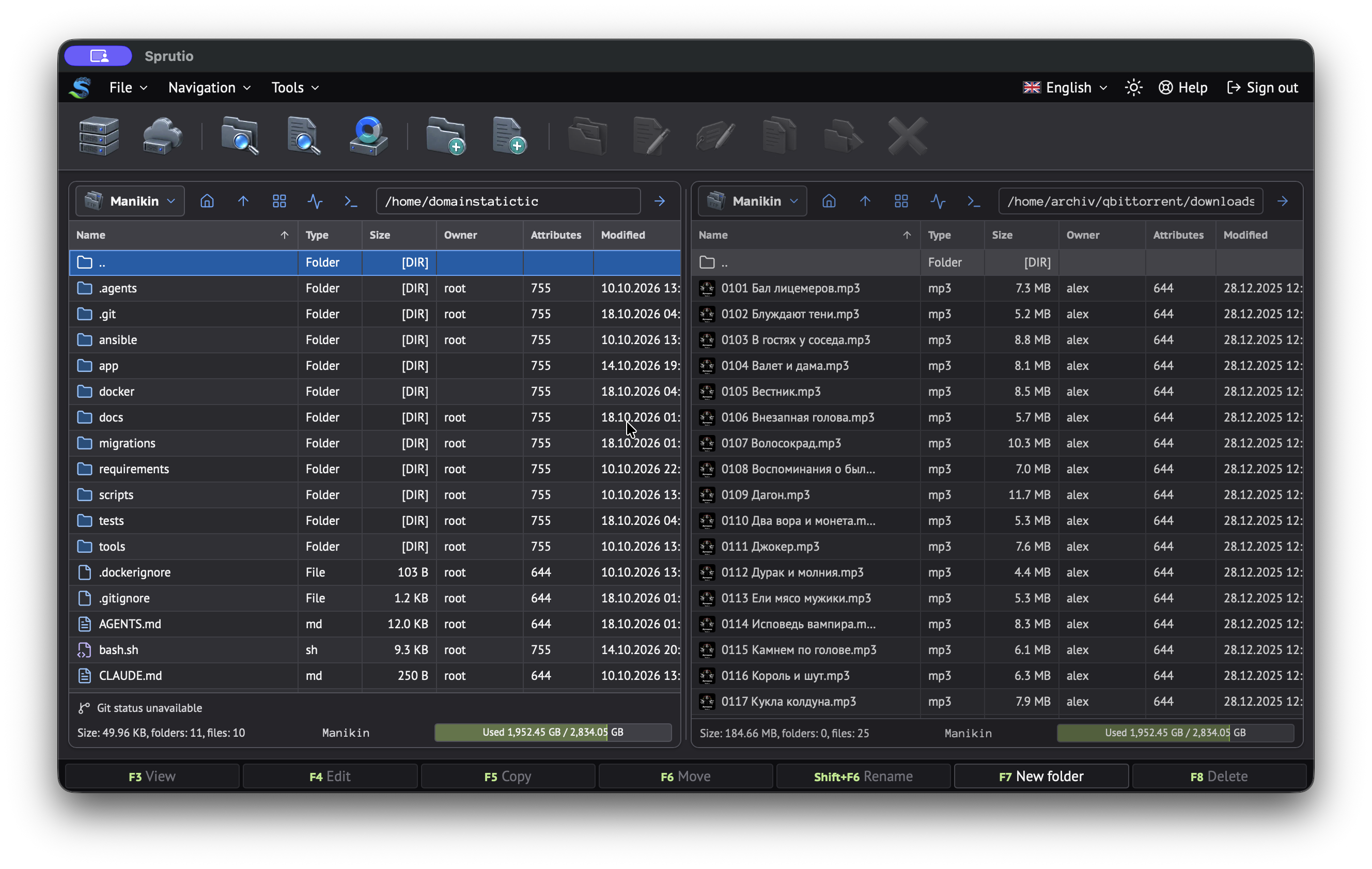
Two-panel navigation
Keep the source and destination visible. Use selection, context menus, keyboard shortcuts and drag and drop for everyday operations.
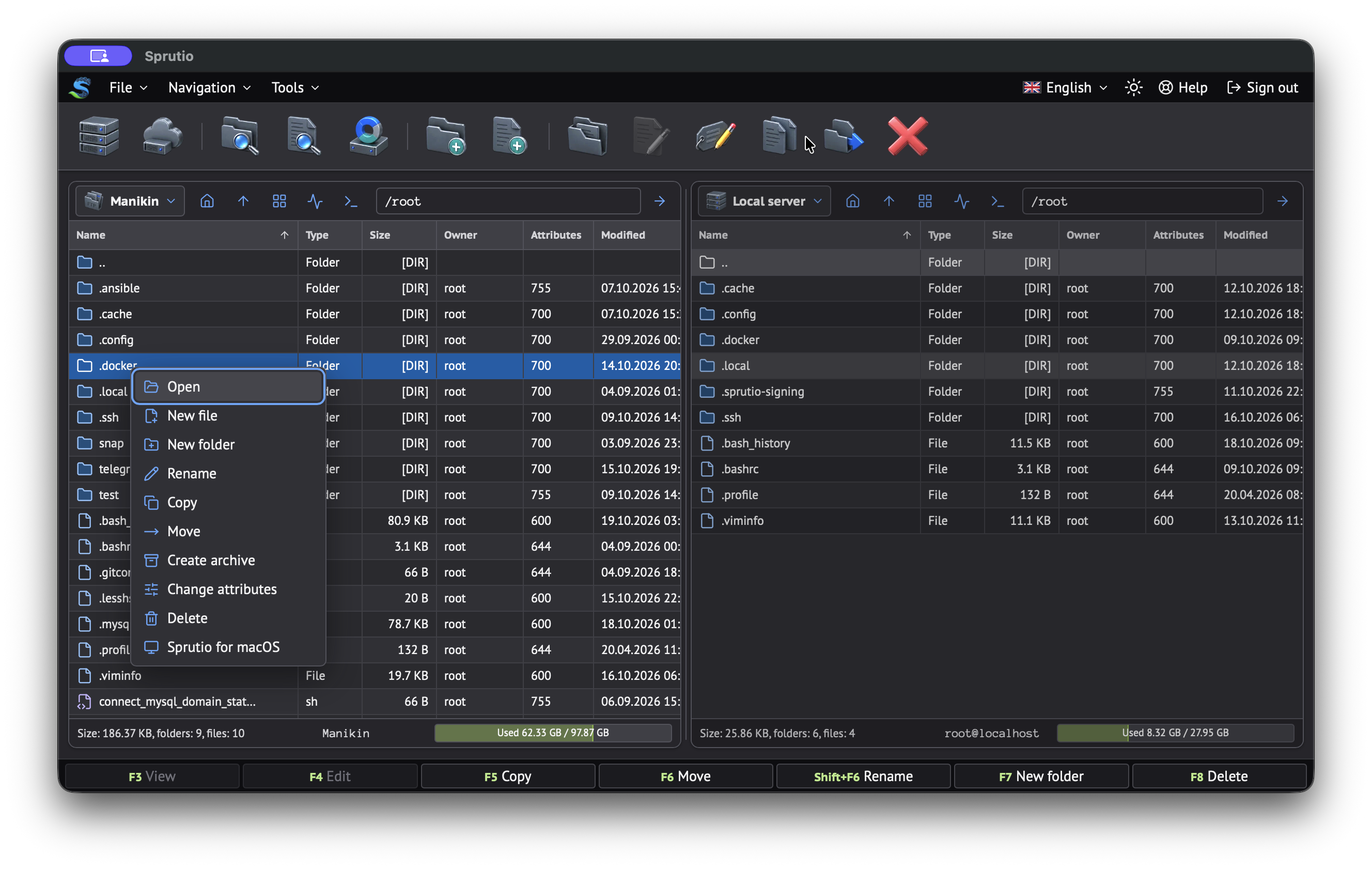
File operations
Create files and directories, copy, move, rename, delete and inspect attributes where the storage supports these actions.
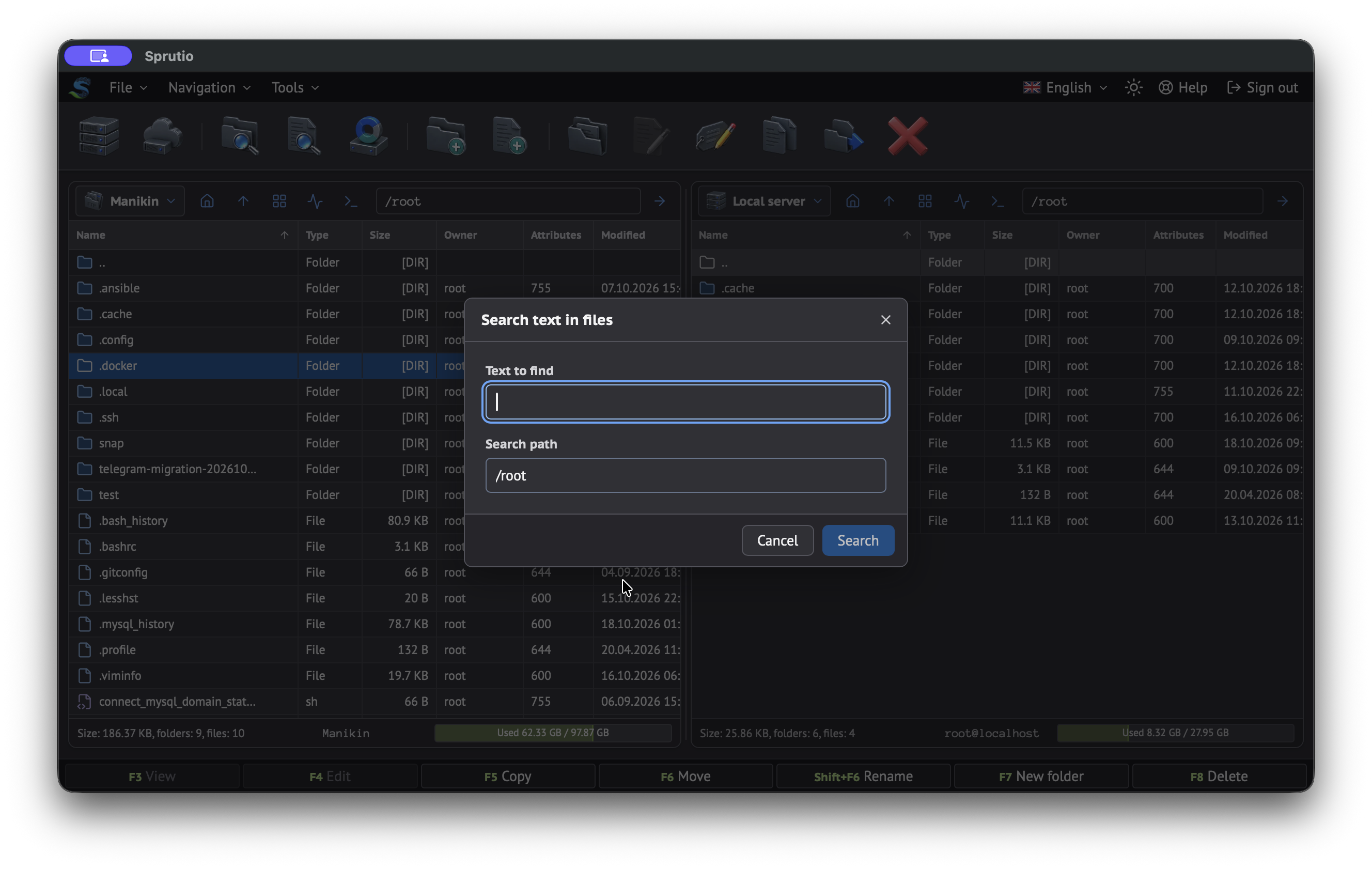
Search
Find files by name and content on supported sources. Search covers all content and runs in the background without blocking other actions.
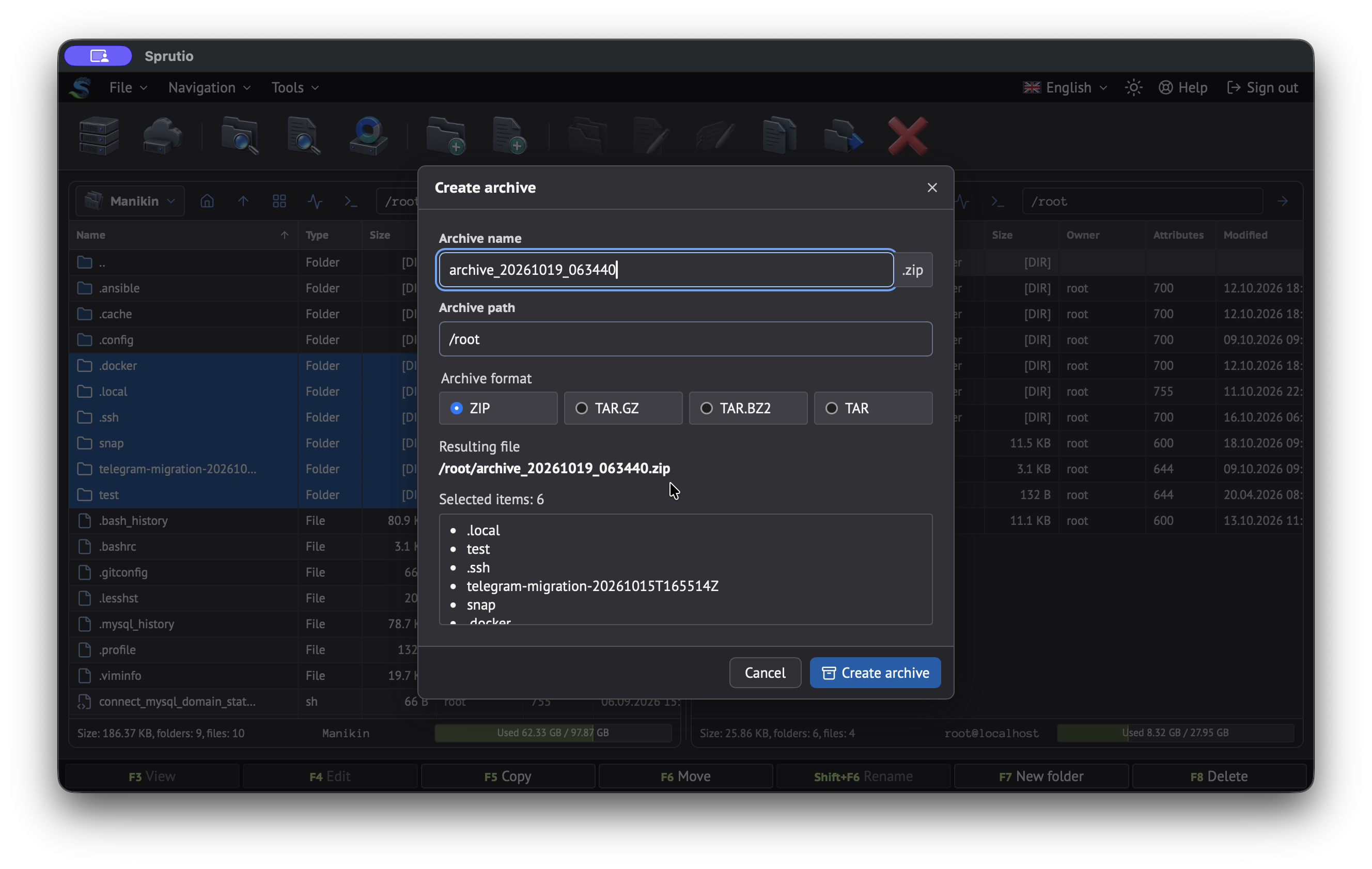
Archive creation
Create and extract archives, and download selected files as an archive. All popular formats are supported, with password protection for archives.
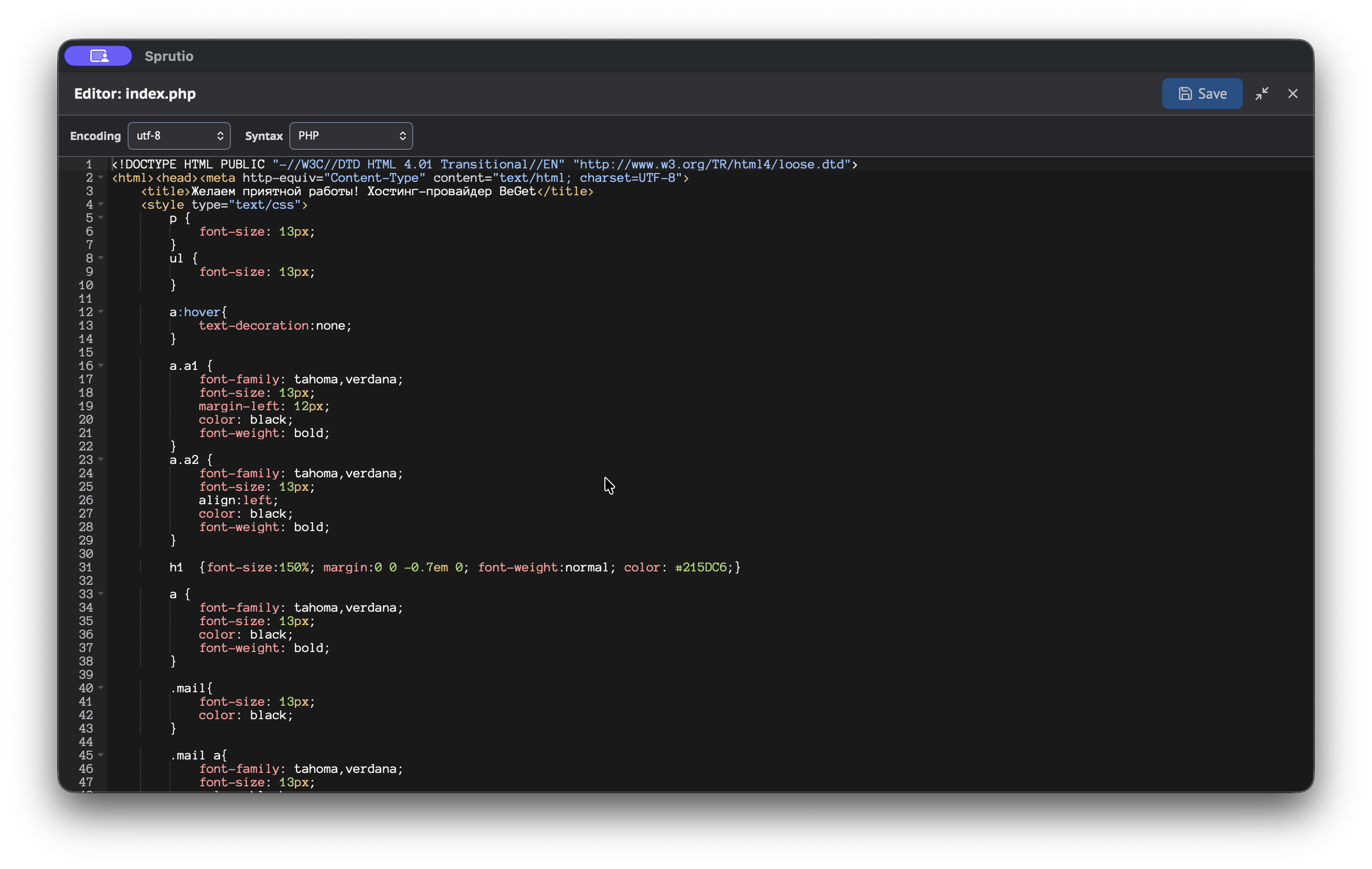
Editing with syntax highlighting
The Ace editor provides syntax highlighting for code and configuration files, with light and dark themes.
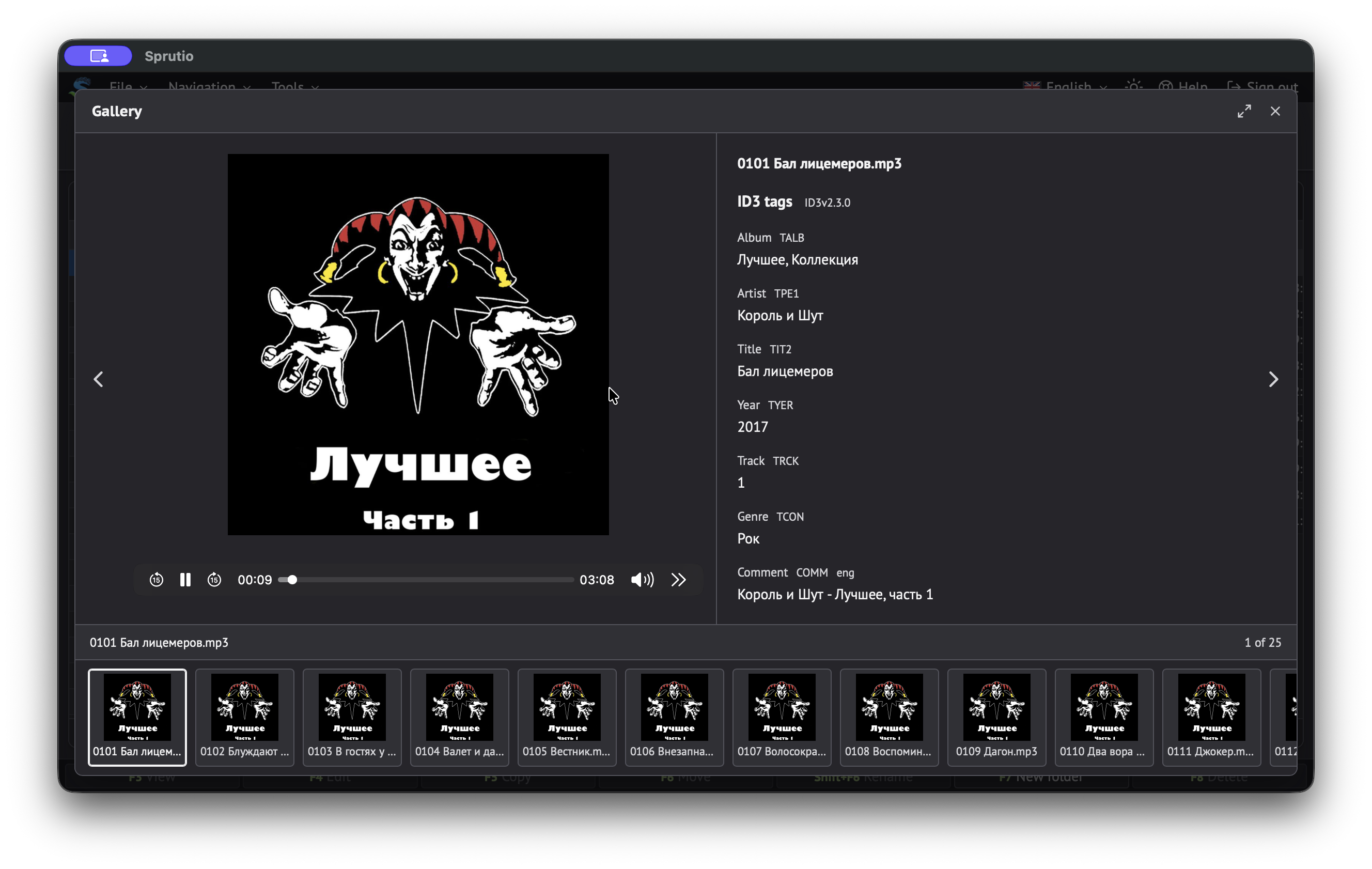
Multimedia viewer
Open images and PDFs, view file metadata, play audio and video, and more.
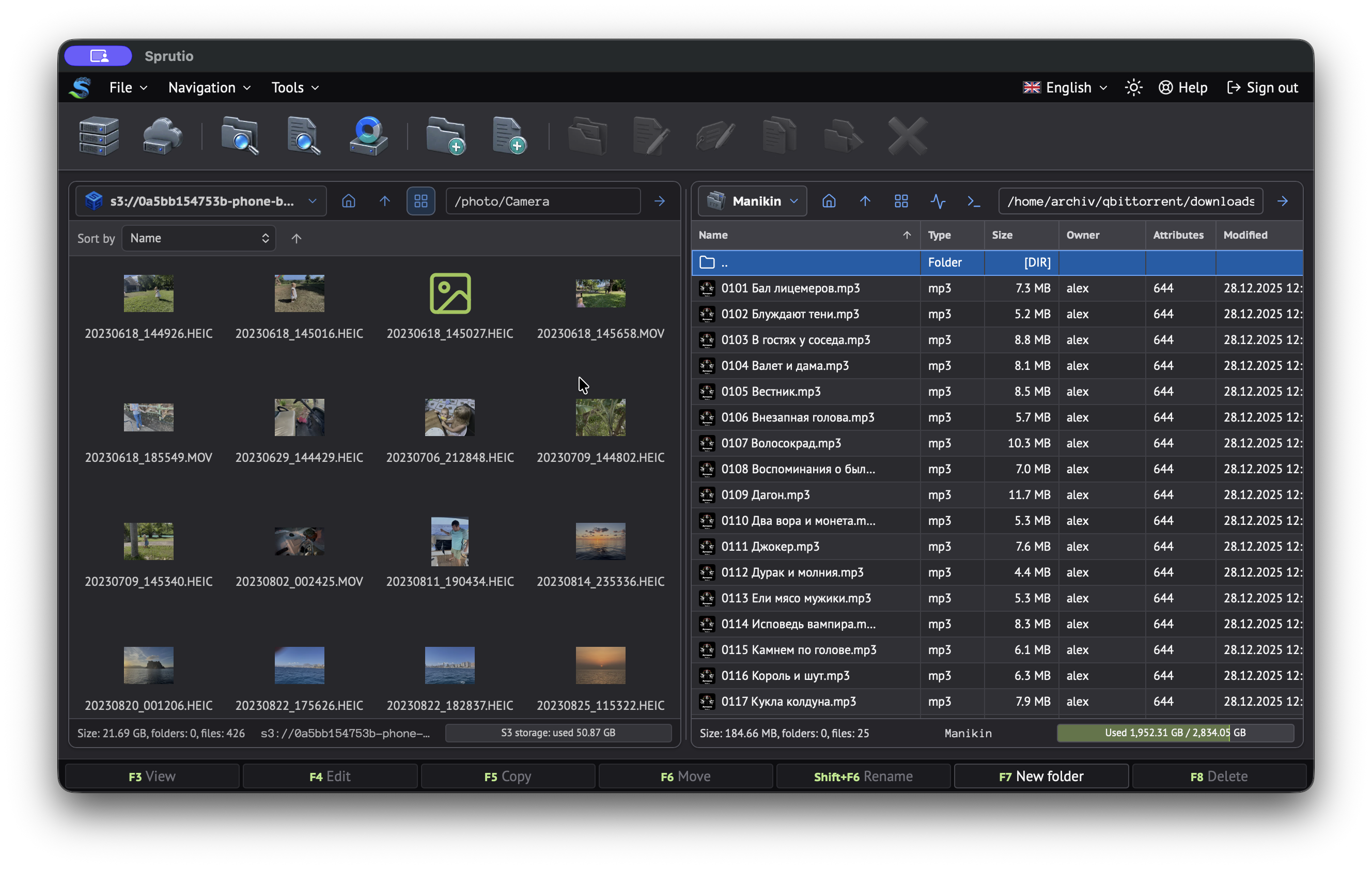
Thumbnail previews
View thumbnails of supported file types directly in the panel to find what you need faster.
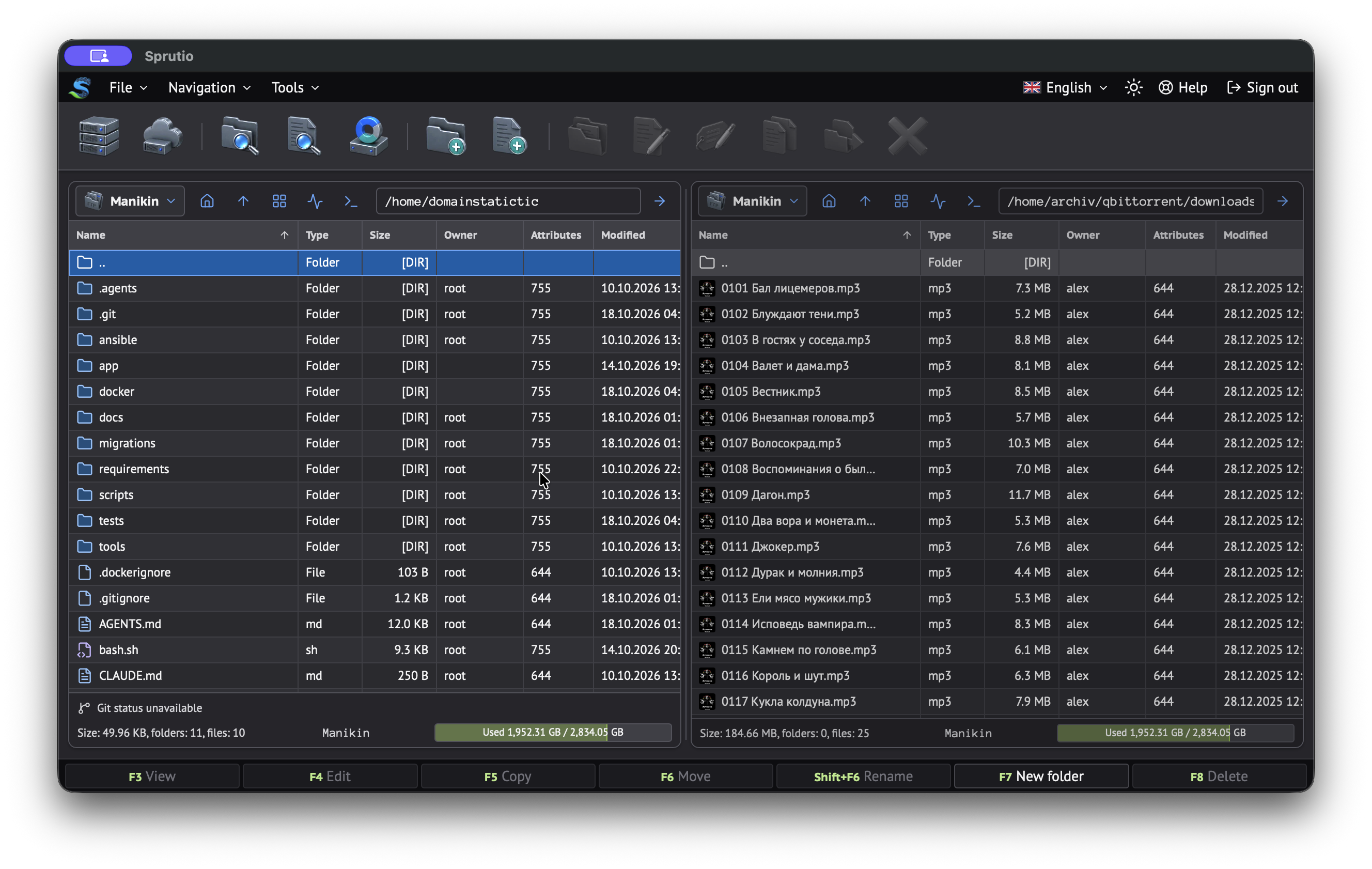
Git status
Git status indicators show file changes in local repositories.
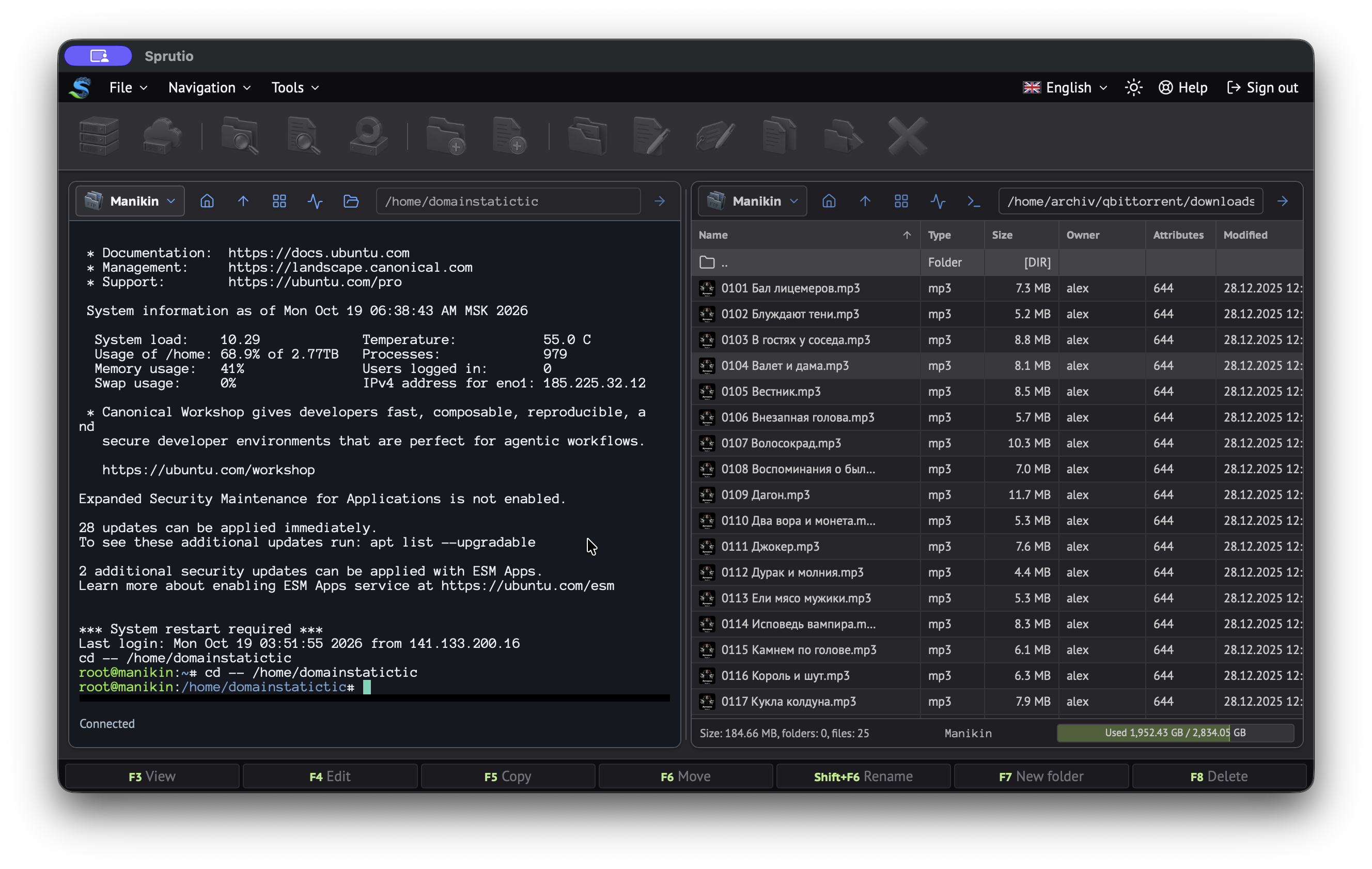
Terminal
Use a local shell or an SSH shell when the remote account permits it. Shell commands run with the connected user’s privileges.
Connect the places you work.
- FTP/SFTP
- WebDav
- S3
- Cloud accounts
- Access to local files and directories
- Yandex.Disk
- Beget
- Cloud.ru
- Netangels
- Timeweb.cloud






A closer view of your server.
Terminal in a panel
Use a local shell or an SSH shell when the remote account permits it. Shell commands run with the connected user’s privileges.

Server information
View CPU, core count, memory, load averages and processes on local and SSH servers. Memory module details require host DMI data.
Personal settings
User preferences and saved connections persist in separate SQLite databases in the app_data volume. Restarting the application ends active web sessions.
Native applications
- Android
- macOS
- Windows
- Linux
- Sprutio Backup Android



Backup plugin
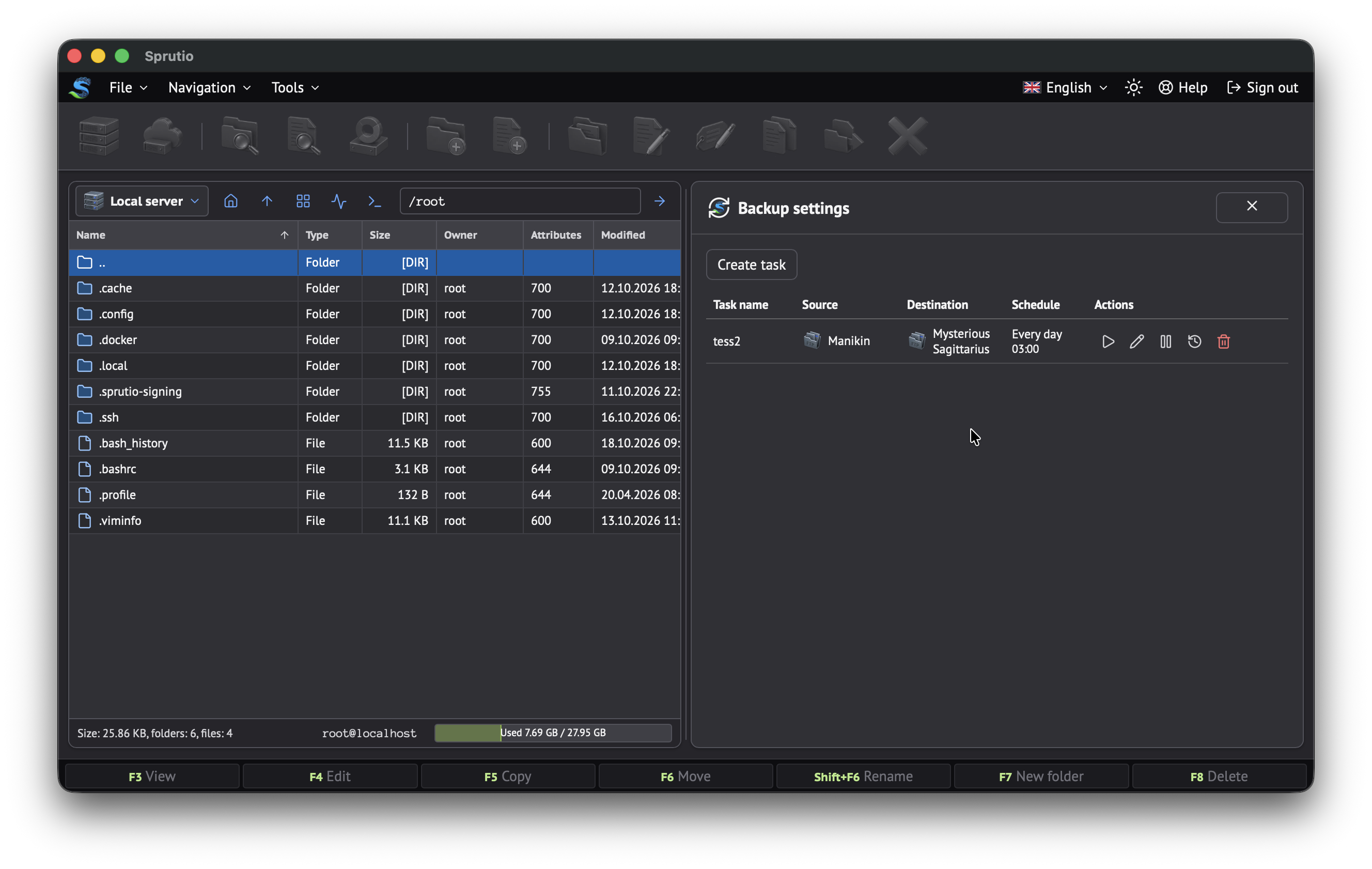
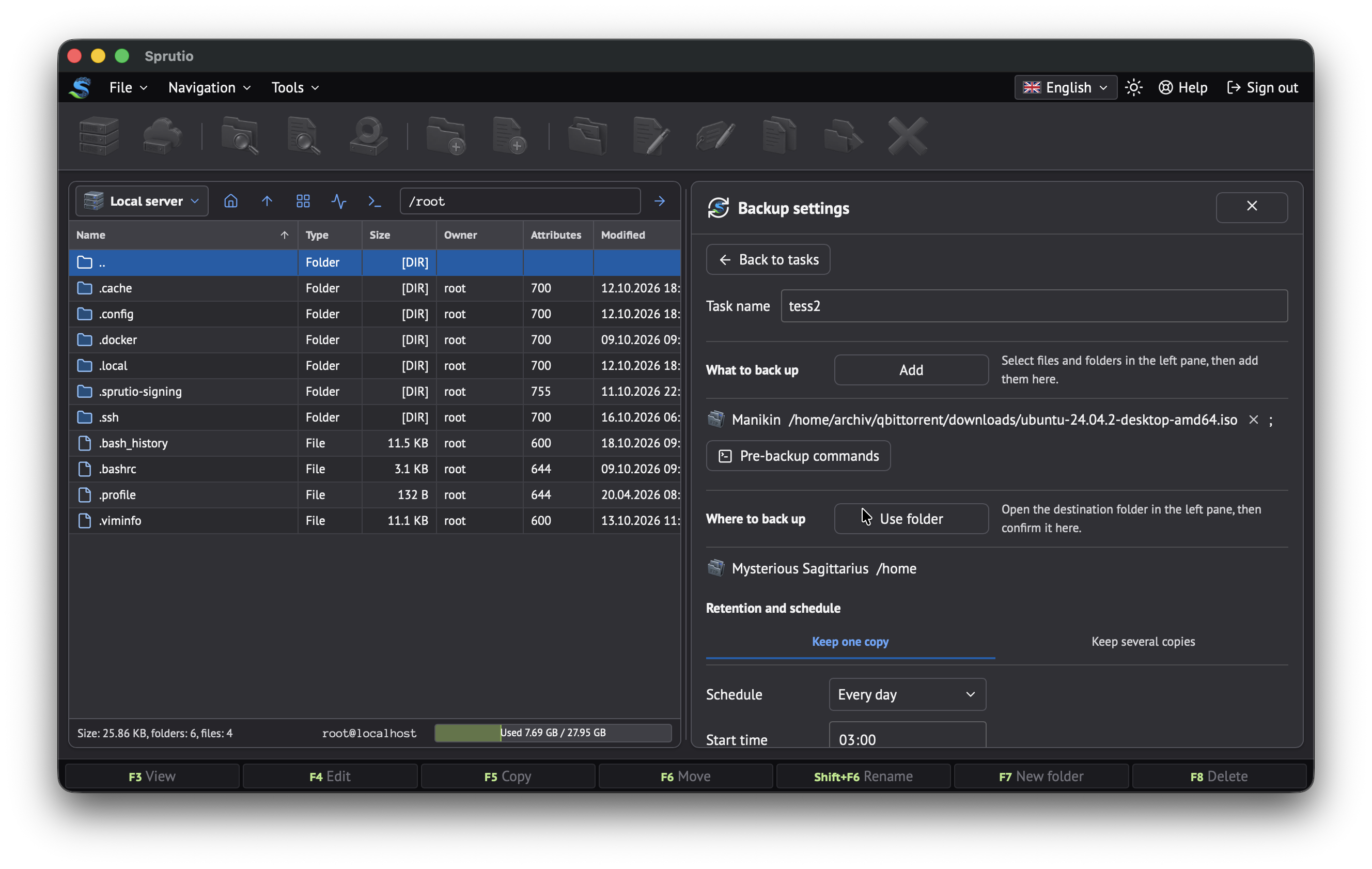
Set up backups of files and directories between connected storage locations. Run tasks manually or on a schedule, choose how many copies to keep and view the run history.
Schedules run on the Sprutio server even when your browser or application is closed.
Remote source
S3 · SFTP · WebDAV · FTP
Sprutio server
Backup plugin
Backup storage
Beget · S3 · FTP